Wednesday, April 29, 2015

HR_DIRECT_REPORTS:DirectReports

HR_DIRECT_REPORTS is an Application Package used throughout the HCM system to achieve Supervisor Data, Peer Data and Direct Report Data.  The package requires that you set either a Target Position or Target Emplid/Empl Rcd and Navigation Method.  

Navigation Methods:
      (1) "Department Security Tree"
          Returns a flat list of all employee/jobs that are accessible
          to the target employee, based upon the target employee's
          RowSecClass. Note that there is no concept of a reporting
          hierarchy when using this method.
          This method cannot be used to determine an employee/job's supervisor.
          It can only be used to generate a list of "direct reports".

      (2) "Supervisor Id"
          Uses the "Supervisor Id" field on the Job record to determine
          reporting relationships. Note that this method does not differentiate
          between multiple concurrent jobs that the supervisor might hold.

      (3) "Department Manager Id"
          The relationship between an employee/job and a supervisor is
          defined by the Department table. The "Manager Id" defined on
          the Department table for the employee/job's department id is
          considered to be the employee/job's supervisor.
          When determining the supervisor for an employee/job, if there
          is no Manager Id associated with the employee's department, then
          we walk up the Department Tree to get the next highest department
          in the department hierarchy that has a Manager Id assigned.
          Note that this method does not fully differentiate between
          multiple concurrent jobs that the supervisor might hold.

      (4) "Reports To"
          This method requires that Full Position Management be implemented.
          The relationship between an employee/job and a supervisor is
          defined by the "Reports To" position on the Job record.
          When determining the supervisor for an employee/job, if there is
          no incumbent in the "Reports To" position on Job, then we walk the
          Position_Data table to get the incumbent in the next highest position
          in the position hierarchy.

      (5) "Partial Position Management / Supervisor Id"
          This method is a combination of "Reports To" and "Department Manager Id".
          First, the "Reports To" method is executed, and then the "Department Manager Id"
          method is executed. The results of these two methods are combined, giving
          preference to the "Reports To" method.
          This method should be used only when Partial Position Management
          has been implemented.

      (6) "Partial Position Management / Department Manager Id"
          This method is a combination of "Reports To" and "Supervisor Id".
          First, the "Reports To" method is executed, and then the "Supervisor Id"
          method is executed. The results of these two methods are combined, giving
          preference to the "Reports To" method.
          This method should be used only when Partial Position Management
          has been implemented.

      (7) "Group Id"
          This method is similar to the "Department Security Tree" method in that
          a flat list of employee/jobs is presented. There is no sense of a hierarchy
          when using this method. The list of employee/jobs returned is simply a list
          of all group members.
          This method cannot be used to determine an employee/job's supervisor. It
          can only be used to generate a list of "direct reports"

Below is an example of method that utilizes the HR_DIRECT_REPORTS application package to find a person's manager and then it will use the manager's position number if the current manager is not active.  This is useful if you are trying to skip manager's who are on leave.  If the initial call does not return an active manager it will recursively call itself until it finds a manager who is active.
 
method getManager
   Local integer &x;
   Local Rowset &results;
   Local string &rsltPosition;
   %This.DirRpts = create HR_DIRECT_REPORTS:DirectReports();
   %This.DirRpts.AsOfDate = %This.JobRecord.EFFDT.Value;
   &rsltPosition = &position;
   If All(&rsltPosition) Then
      %This.DirRpts.TargetPosition = &position;
   Else
      %This.DirRpts.TargetEmplid = %This.JobRecord.EMPLID.Value;
      %This.DirRpts.TargetERN = %This.JobRecord.EMPL_RCD.Value;
   End-If;
   %This.DirRpts.UseDirectReportsTables = False;
   %This.DirRpts.ShowName = False;
   %This.DirRpts.NavigationMethod = 4;
   %This.DirRpts.GetSupervisor();
   &results = %This.DirRpts.Supervisor;
   For &x = 1 To &results.RowCount
      If &results(&x).GetRecord(1).EMPL_STATUS.Value = "A" Then
         %This.managerID = &results(&x).GetRecord(1).EMPLID.Value;
         &mgrFound = True;
      End-If;
   End-For;
   
   If Not &mgrFound Then
      &rsltPosition = &results(1).GetRecord(1).POSITION_NBR.Value;
      If All(&rsltPosition) Then
         &position = &rsltPosition;
         %This.getManager();
      End-If;
   End-If;
end-method;
 
 
If you want to play around with this API, you an use the following navigation Main Menu>>Set Up HRMS>>Common Definitions>>Direct Reports for Managers>>Invoke Direct Reports API  and play around with the API through an easy to use GUI.


Thursday, April 2, 2015

Create XLS Reports From Related Actions

If you want to get the most out of your 8.5x toolset you need to start leveraging the power of related content and actions.  One way to improve UX is to generate on demand reporting right from the transaction.

Related actions can be used to call IScripts and IScripts can be used to generate XLS reports and send them to directly to the user.  Below is an example of a report we generate for Succession Planning, this report exports all the plans within the current users organization and break them up by Line of Business, with each line of business on its own worksheet.


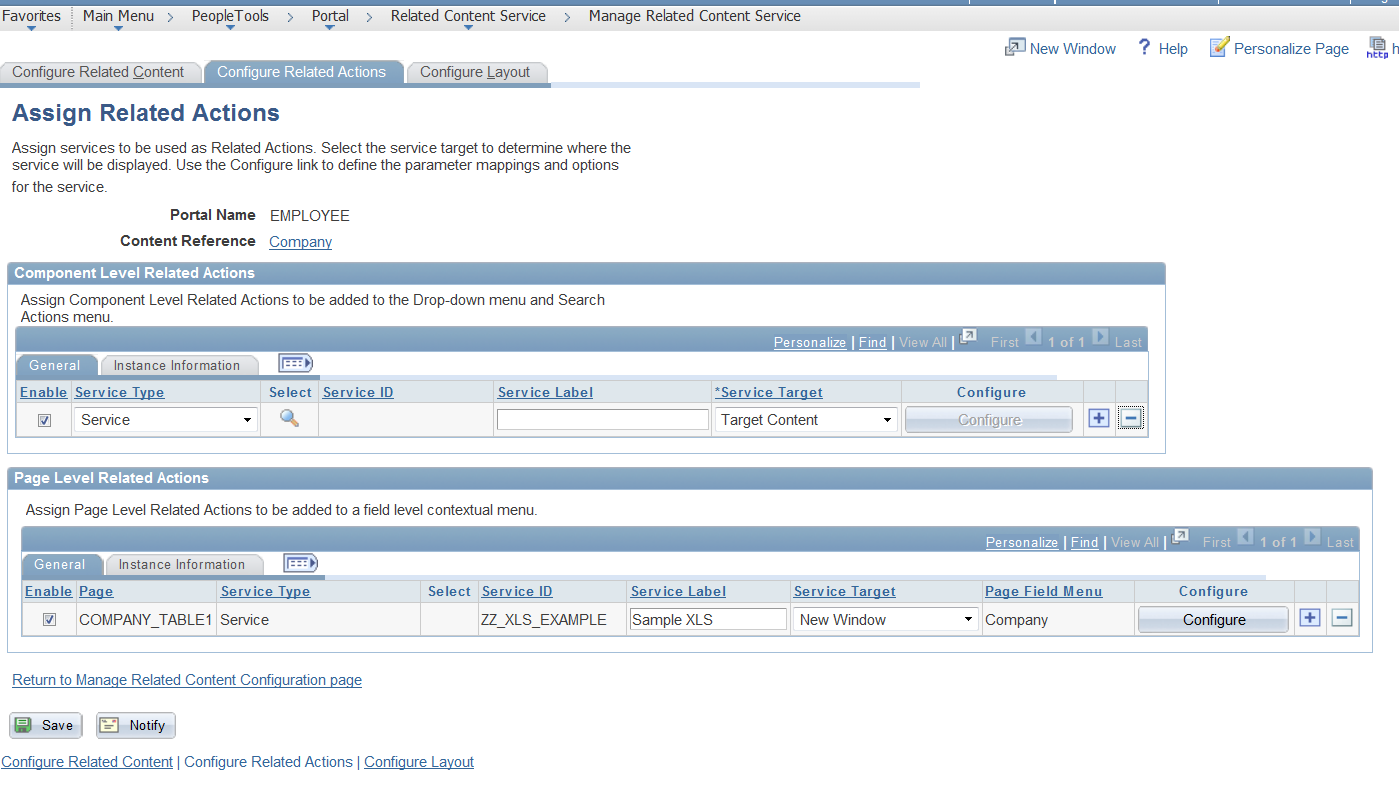
To Generate Speadsheets from Related Actions, start by down loading my example project that can be found here.  (Note, if you cannot get to this content, your firewall is blocking it).  After installing this project, at your own risk, into a development like PeopleSoft environment, then you need to configure your Related Content Service:


After you configured your Related Content Service you need to configure your new service to work on the Company Content Reference.   Make sure you also grant your test user access to your IScript, because it will not show up unless you have explicit security to the content, meaning PeopleSoft Admin role will not cut it.


Then Click into the Configure button above and Map the Menu option to the Company on Level 0 of the component, 

Now you are ready to view the end result.


Generate Excel Reports from IScripts

This is an example Project that demonstrates how you can generate Excel Reports from IScripts.  It is written for HCM, but could easily be adapted to FIN.  You will need to download the project from the link below:

https://app.box.com/s/wlhbppqxncayq7q60evj59l4gwp4vgqn

The IScript uses requires one Querystring parameter, COMPANY.  The company will be used to select all employees from the Employee's record and puts the results into an XML 2003 Spreadsheet and streams it via the browser.


Please note, downloading and installing this project is at your own risk.  With that said please compare the project with your target environment to make sure you are not accidently destroying one of your own custom objects.


Thursday, February 19, 2015

Succession 360 - Hiding HCSC Folder Tabs

We are implementing Succession Planning and I was asked to hide Some Tabs on the Succession 360 page that we were not going to utilize.  My first thought was I could navigate to the Configure Folder Tabs and simply delete the tabs that we are not using.  You can find the Configure Folder Tabs using the navigation below:

Set Up HRMS > Common Definitions > Folder Tabs > Configure Folder Tabs

Or use 

Main Menu>>Enterprise Components>>Find Object Navigation and search for Component Name HCSC_TAB_DEFN

When I deleted the Tabs the component stopped loading and gave me hard peoplecode errors, because the component has hard coded values for the number of tabs it is expecting.  So to make this happen I configured all the tabs that I wanted to delete and moved them to the end of the Tabset and used JavaScript to hide them in the component. I also renamed the Tab Set Id from Tab## to ZZHIDE for the tabs that I wanted to hide.


This simplified my JavaScript to one line.


<script language="JavaScript">

$(document).ready(function(){

$( "a[name$='ZZHIDE']" ).css( "visibility", "hidden" );

})

</script>


Wednesday, February 11, 2015

Macro to Highlight Cells over 30 Chars (Scrubbing Data Pre Load)

When loading data into an delivered Component via CI, sometimes you get data that is larger than the target field's length.  For instance, 30 characters for the Field DESCR.

This macro will highlight a cell yellow if it is over the 30 Characters.  This identifies what data will be truncated.  Change the col variable, currently it is set to 3, this would be column C.  The macro also starts on the activecell, so highlight the row you want the macro to begin.


Sub scan()
Dim i As Long
Dim s As Long
Dim o As Long
Dim col As Long
Dim tgt As Long
 
 tgt = 30
 col = 3
 s = ActiveCell.Row
 For i = ActiveCell.Row To Rows.Count
  
 If Len(Cells(i, col).Value) > tgt Then
  Cells(i, col).Interior.ColorIndex = 6
  ActiveCell.Offset(o, 0).Select
  
   
 End If

Next i
End Sub

Results:


Tuesday, February 10, 2015

Bookmarklet for Navigation

Here is a quick bookmarklet to copy your Navigation to text while in Peoplesoft.  This works if your Class name for you breadcrumbs is pthnavbcanchor.

javascript:function getCref() { var x = document.getElementsByTagName('A'); var i; for (i = 0; i < x.length; i++) { var d = x[i].id; if (d.substring(0, 15) == 'pthnavbccrefanc') { return x[i].innerHTML }}}function getElementsByClassName(node, classname) { var a = []; var re = new RegExp('(^| )'+classname+'( |$)'); var els = node.getElementsByTagName('*'); for(var i=0,j=els.length; i>' +  nav[i].innerHTML;};}; var cref; cref = getCref();navPath = navPath + '>>' + cref; window.prompt('Copy to Clipboard: Ctrl+C, Enter',navPath);


To implement this Bookmarklet follow these instructions in Chrome:

Right click on your Bookmarks bar and select add page

*Note:  If you cannot see the bookmarks (ctrl+shift+B) will hide and show it in Chrome.

Edit the new book. I used GetNavPath as the name and them copy the JavaScript from the Blog to the URL.


Then test it.

From the Web Profile I get this text:

>>Favorites>>Main Menu>>PeopleTools>>Web Profile

It will show the Favorites, but I usually stop copying at Main Menu.  Then I press the Cancel button to prevent the page from redirecting in Chrome.


Tuesday, December 23, 2014

ACA Hours

I have been writing a view to pull hours for ACA Reporting.   To preface this we use TL and Payroll for North America, but since hours can be added to the paysheet, I thought it best not use the TL tables and get the hours directly from the Payroll.

First the Record Definition:


My view contains COMPANY, PAYGROUP, EMPLID, PAY_END_DT, ERNCD and TOT_HRS.  Below is my SQL for building this view:

WITH HOURS_WRK (COMPANY, PAYGROUP, EMPLID, PAY_END_DT, ERNCD , HOURS) AS (

 SELECT C.COMPANY

 , C.PAYGROUP

 , P.EMPLID

 , P.PAY_END_DT

 ,CASE P.REG_HRS WHEN 0 THEN P.ERNCD_REG_EARNS ELSE P.ERNCD_REG_HRS END

 , (P.REG_HRS + P.REG_EARN_HRS)

  FROM PS_PAY_EARNINGS P

  , PS_PAY_CHECK C

 WHERE P.COMPANY=C.COMPANY

   AND P.PAYGROUP=C.PAYGROUP

   AND P.PAY_END_DT=C.PAY_END_DT

   AND P.OFF_CYCLE=C.OFF_CYCLE

   AND P.PAGE_NUM=C.PAGE_NUM

   AND P.LINE_NUM=C.LINE_NUM

   AND P.SEPCHK=C.SEPCHK

   AND C.PAYCHECK_STATUS = 'F'

   AND P.OK_TO_PAY = 'Y'

  UNION ALL

 SELECT C.COMPANY

 , C.PAYGROUP

 ,c.emplid

 , c.pay_end_dt

 , ERNCD

 , a.oth_hrs

  FROM PS_PAY_OTH_EARNS A

  ,PS_PAY_EARNINGS B

  ,PS_PAY_CHECK C

 WHERE A.COMPANY=B.COMPANY

   AND A.PAYGROUP=B.PAYGROUP

   AND A.PAY_END_DT=B.PAY_END_DT

   AND A.OFF_CYCLE=B.OFF_CYCLE

   AND A.PAGE_NUM=B.PAGE_NUM

   AND A.LINE_NUM=B.LINE_NUM

   AND A.SEPCHK=B.SEPCHK

   AND A.ADDL_NBR=B.ADDL_NBR

   AND C.PAYCHECK_STATUS = 'F'

   AND B.OK_TO_PAY='Y'

   AND A.COMPANY=C.COMPANY

   AND A.PAYGROUP=C.PAYGROUP

   AND A.PAY_END_DT=C.PAY_END_DT

   AND A.OFF_CYCLE=C.OFF_CYCLE

   AND A.PAGE_NUM=C.PAGE_NUM

   AND A.LINE_NUM=C.LINE_NUM

   AND A.SEPCHK=C.SEPCHK)

 SELECT COMPANY

 , PAYGROUP

 , EMPLID

 , PAY_END_DT

 , ERNCD

 , HOURS

  FROM HOURS_WRK

After this view is built I can select my hours from the paycheck and sum them by emplid, paygroup, company and filter by earning code.  This is the sql we are using to pull last years hours:

SELECT EMPLID, SUM(TOT_HRS) FROM PS_ZZ_EE_PAY_C_HRS
WHERE ERNCD not in ('020', '030', '023') 
AND PAY_END_DT BETWEEN to_date('10/14/2013', 'mm/dd/yyyy')  
AND  to_date('10/12/2014', 'mm/dd/yyyy') 
group by emplid,paygroup;


If anyone thinks I am missing something or would add to this post leave a comment and we can start a discussion.